A required update to SPOT is being rolled out through SPOT Launcher. This update is necessary to ensure continued access to SPOT and will be required by an upcoming version. The process is fully automated — SPOT Launcher will handle the download and installation for you. The only requirement is that SPOT Launcher must be run with Administrator privileges.
Important: Administrator Rights Required
This update requires SPOT Launcher to be run as an Administrator. Without Administrator privileges, the update cannot install and SPOT will not launch. If you do not have Administrator credentials for your computer, please contact the person or team responsible for managing your systems before proceeding.
Launching SPOT as Administrator
To begin the update, you must start SPOT Launcher with elevated (Administrator) privileges. This is a one-time requirement for the update to install.
Close SPOT if it is currently open.
Locate the SPOT shortcut on your desktop or taskbar.
Right-click the SPOT icon and select Run as administrator.
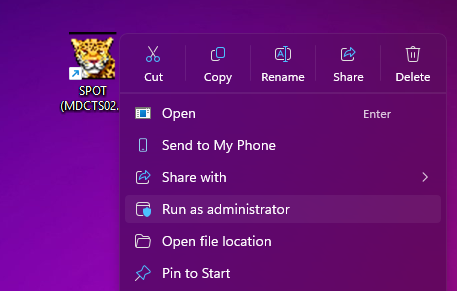
If a Windows security prompt (User Account Control) appears asking "Do you want to allow this app to make changes to your device?" — click Yes.
Note
If you are prompted for an Administrator username and password that you do not have, you will need to contact the appropriate person at your business who manages your computers. SPOT Support is unable to assist with local computer credentials.
The Update Process
Once SPOT Launcher is running with Administrator rights, the update process will begin automatically. Follow the on-screen prompts to proceed.
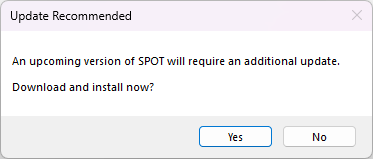
An "Update Recommended" dialog will appear with the message: "An upcoming version of SPOT will require an additional update. Download and install now?" Click Yes.
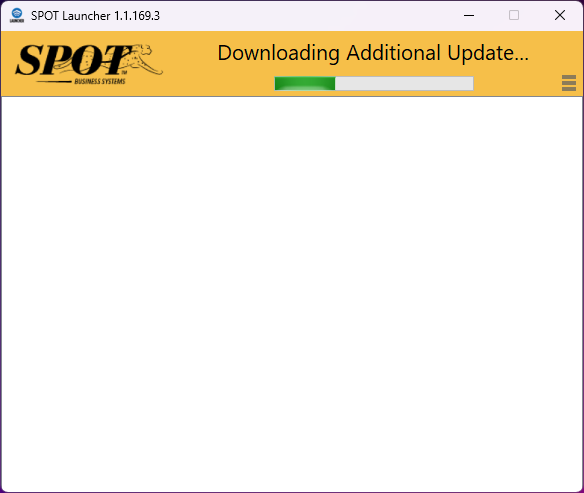
SPOT Launcher will begin downloading the update. You will see a "Downloading Additional Update..." progress bar. Allow this to complete — do not close SPOT Launcher during this step.
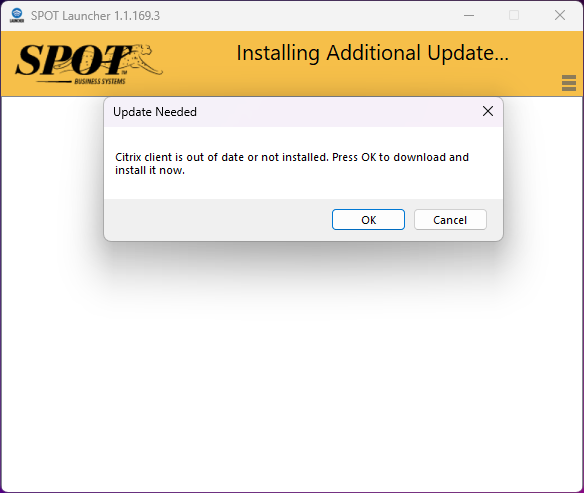
Once the download finishes, SPOT Launcher will display "Installing Additional Update..." and an "Update Needed" dialog will appear, related to the version of your Citrix Client. Click OK to proceed with the installation.
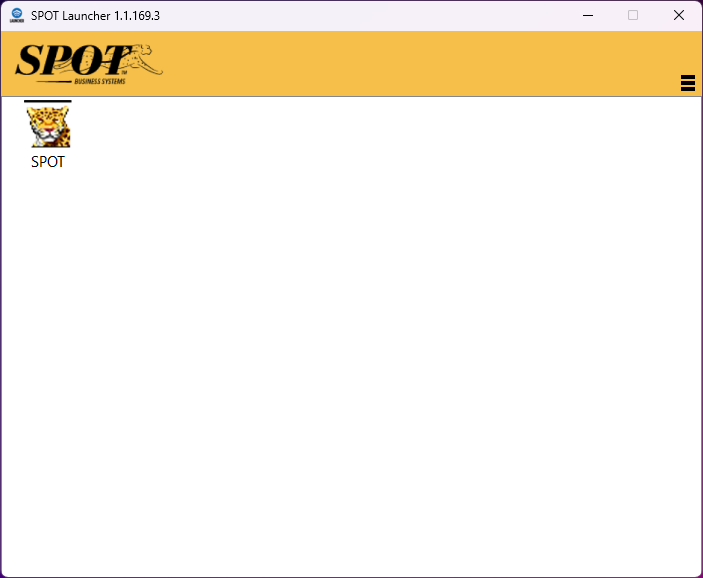
The installation will run automatically. Once complete, SPOT Launcher will load normally and you will see the standard launch screen. You are now fully updated and can continue using SPOT as usual.
Note
After the update has been installed once, you do not need to continue running SPOT Launcher as Administrator. You can return to launching SPOT the way you normally do.
Troubleshooting
The update prompt does not appear
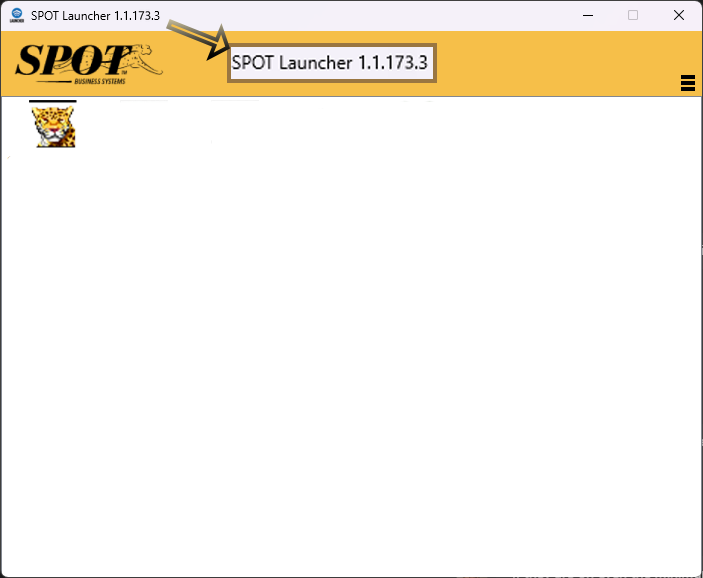
Make sure you are running the latest version of SPOT Launcher. You can verify which version of SPOTLauncher you’re running in the top left corner of your window. The latest version as of the writing of this article is SPOT Launcher 1.1.173.3 — if you suspect you’re running an older version of SPOTLauncher, please contact our Support team to update.
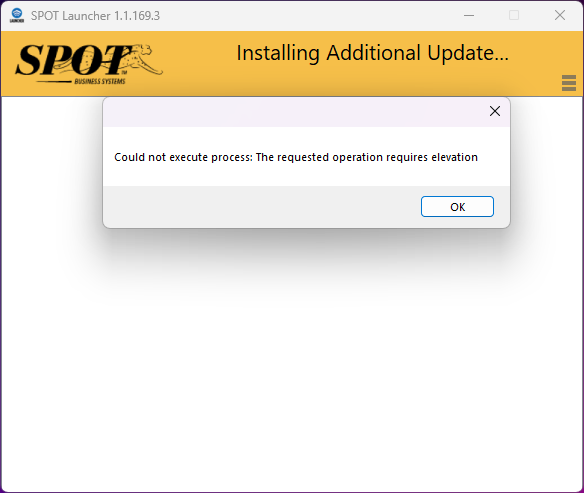
The update fails with “Requested operation requires elevation”
Confirm that SPOT Launcher was run as Administrator (right-click → Run as administrator). If the update was attempted without Administrator rights, close SPOT Launcher and try again using the steps in the section above.
I don't have Administrator credentials
Contact the person or team at your business responsible for managing your computer systems. This may be a business owner, manager, or dedicated IT personnel. SPOT Support cannot provide or reset local computer passwords.