SPOT Launcher is the program you use to open SPOT. From time to time, SPOT Launcher needs an update of its own. When one is ready, SPOT Launcher shows you an update notification and installs the update for you. It takes just a few minutes.
Required updates
Some SPOT Launcher updates are required. The message tells you the date the update is required by. After that date, the message is titled Update Required and the update installs when you click OK. Install the update as soon as you see it so it never gets in the way of your day.
No Administrator rights needed
SPOT Launcher updates install without Administrator rights. Open SPOT Launcher the way you normally do.
Installing the update
Open SPOT Launcher the way you normally do. It checks for updates after it signs you in and shows your apps.
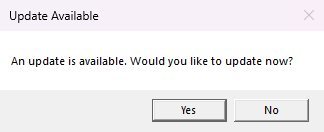
When the Update Available message asks An update is available. Would you like to update now?, click Yes.
SPOT Launcher shows Downloading Launcher Update... with a progress bar, then Installing Launcher Update..., and closes while the installer runs. Follow the installer's prompts.
When the installer finishes, open SPOT Launcher again if it does not open on its own.
Confirming you're up to date
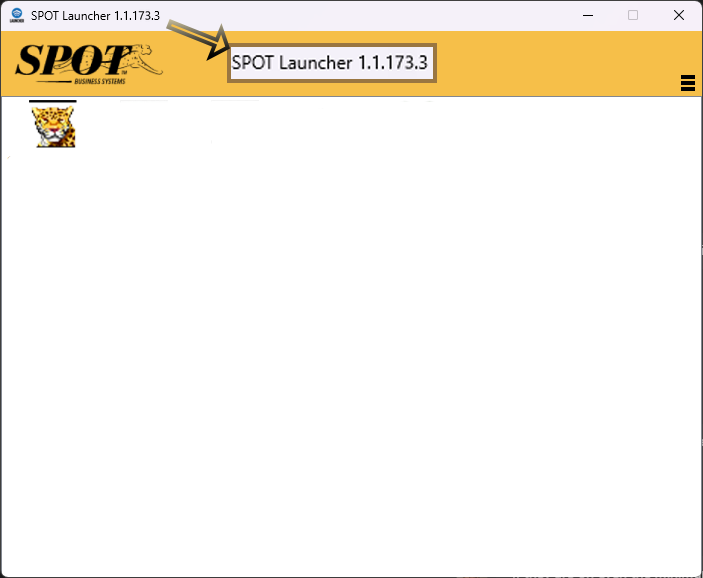
The version number shows in the top left corner of the SPOT Launcher window. After this update it reads SPOT Launcher 1.1.173.3.
Updating Citrix Workspace instead?
Citrix Workspace updates are a separate process, and they do require Administrator rights. If you have been asked to update Citrix Workspace, follow Updating Citrix and SPOTLauncher to Latest Version.
Troubleshooting
I don't see the update notification
SPOT Launcher checks for updates only after it signs you in and shows your apps, so give it a moment after it opens. If it shows a version older than 1.1.173.3 and no update message appears, contact SPOT Support at (801) 208-2210.
The update stops or shows an error
Leave the message on screen, take a screenshot if you can, and contact SPOT Support at (801) 208-2210.