The same SPOT you know — now accessible directly from your browser.
What is SPOTWeb?
SPOTWeb is a browser-based version of SPOT that eliminates the need for Citrix, Remote Desktop sessions, or any local application installation. You simply open a URL in your browser, log in, and you're in SPOT — the same program, the same interface, the same workflows you've always used. The only thing that's changed is how you get there.
What Changed (And What Didn't)
What's gone: Citrix Receiver, Citrix Workspace, and SPOTLauncher. You no longer need any of these to access SPOT.
What's new: A browser URL. Navigate directly to SPOTWeb in any modern browser — Chrome and Edge are recommended for the best experience. You can bookmark the URL for easy access.
What's the same: Everything else. Your username, PIN or password, Account Key, and workstation selection are all unchanged. Once you're past the login screen, it's the SPOT you know.
Signing Up for SPOTWeb
SPOTWeb access is enabled on a per-account basis. If your store isn't on SPOTWeb yet and you're ready to try it out, fill out the signup form and our team will get you started.
Sign up for SPOTWeb: SPOTWeb Signup Form
How to Log In
Getting into SPOTWeb is straightforward. Here's the step-by-step:
Open your SPOTWeb URL in a browser. We recommend bookmarking it for quick access.
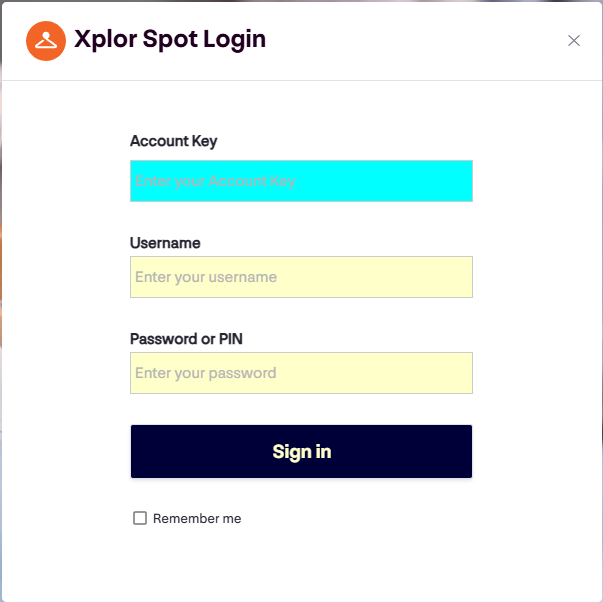
Enter your Account Key, Username, and Password or PIN, then click Sign in.
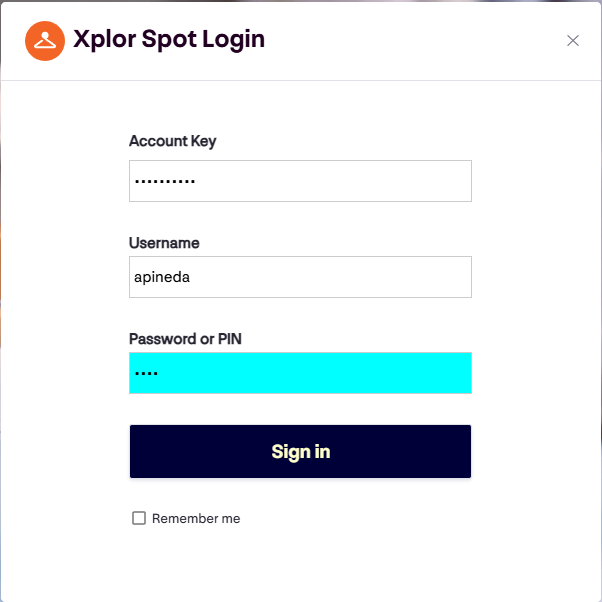
Select your Account and click Continue.
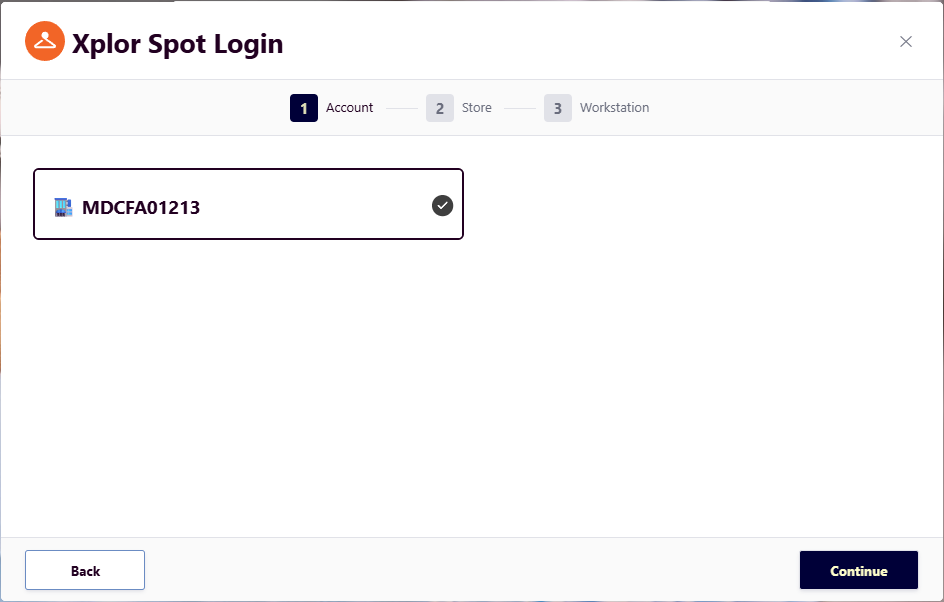
Select your Store and click Continue.
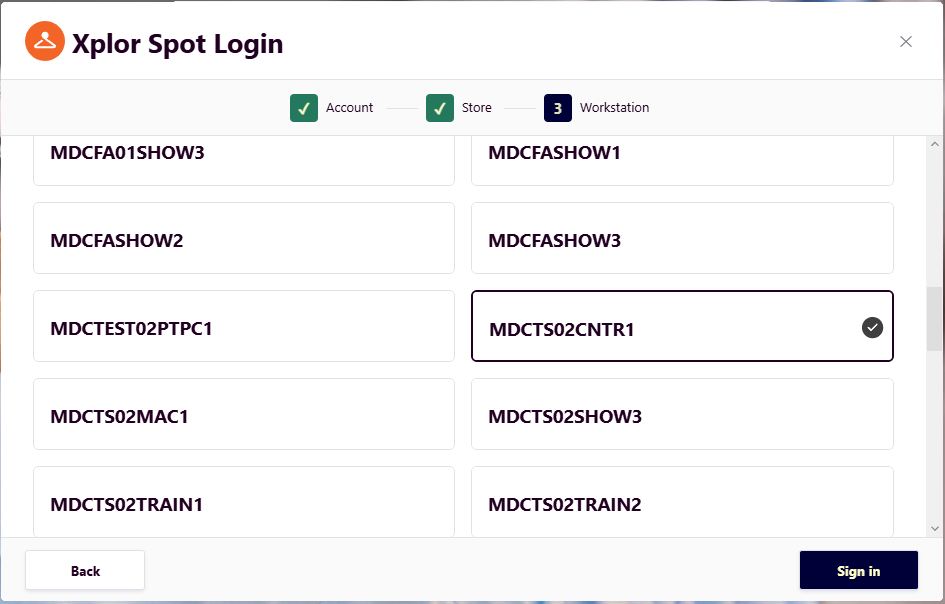
Select your Workstation and click Sign in.
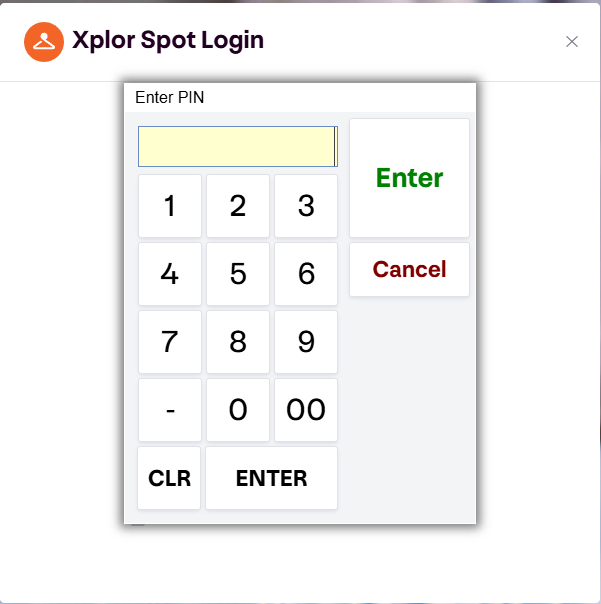
Enter your SPOT PIN on the keypad.
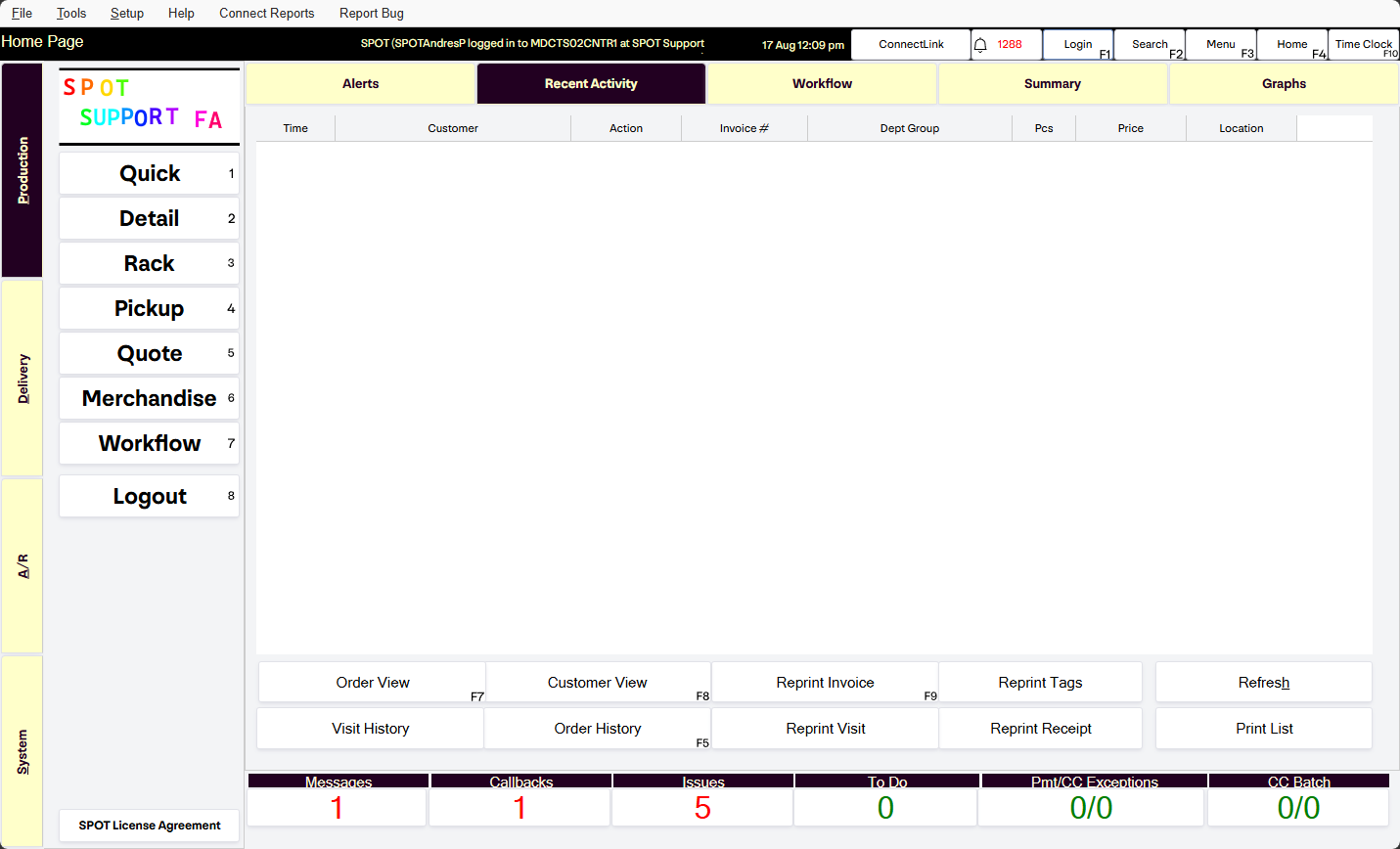
You're in SPOT.
Session Behavior — What to Expect
If you're coming from Citrix, you'll notice sessions work a little differently in SPOTWeb. Here are the key things to be aware of:
20-minute idle timeout: After 20 minutes of inactivity, a popup will appear giving you approximately 2 minutes to click OK and continue your session. If you don't respond, you'll be logged out automatically and will need to log back in.
One tab only: SPOTWeb supports a single active session at a time. Opening SPOTWeb in a second browser tab will start a new session and disrupt your first one. If you find yourself unexpectedly logged out, check whether you had multiple tabs open.
One device at a time: Only one active session is supported across devices. If you need to switch from one computer to another, log out of the first one before logging in on the second.
Tip: Save your work frequently, especially while you're getting used to the new session timeout behavior.
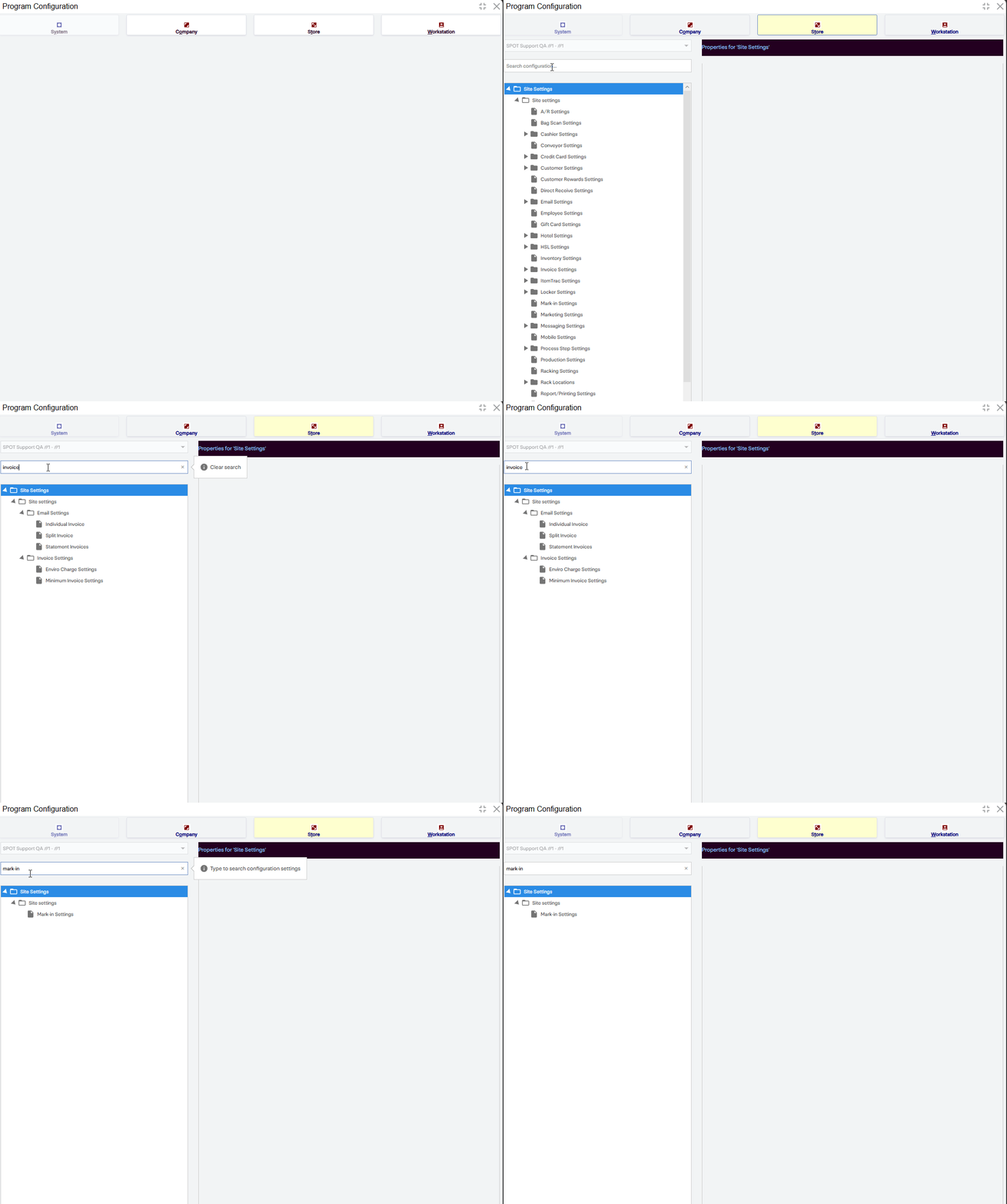
Configuration searching
New to SPOTWeb, you can now search through Program Configuration, making finding the setting that matters to you a breeze.
Troubleshooting Common Login Issues
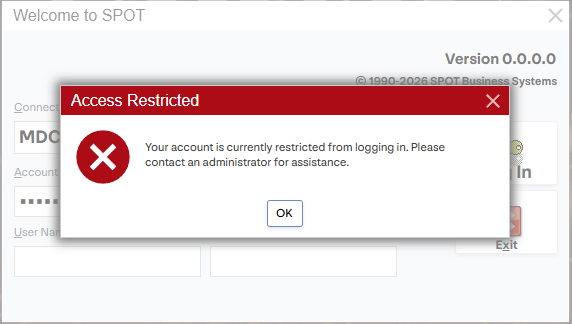
I see an "Access Restricted" error
Fully close your browser — all tabs and windows, not just the SPOTWeb tab — and try again. If the error persists, contact support with your Account Key
Login was working before but now it doesn't
Verify you're using the same Account Key and Workstation as before. If everything matches and you still can't get in, reach out to support so we can investigate on our end.
I selected the wrong Workstation
Close the browser completely and reopen SPOTWeb. Select the correct Workstation. If you're not sure which Workstation to use, contact support and we'll look it up for you.
The screen is blank or incomplete after logging in
Press F5 or use your browser's refresh button. Make sure you don't have SPOTWeb open in more than one tab. If the issue continues after refreshing, contact support.
I keep getting logged out while I'm actively working
First, make sure you don't have SPOTWeb open in a second tab or on another device — this will terminate your original session. If you're certain it's only open in one place and you're still being logged out during active use, contact support so we can look into it.
Frequently Asked Questions
Which browser should I use?
Any modern browser will work. We recommend Chrome or Edge for the best experience.
Can I use SPOTWeb in incognito/private mode?
Yes, but we recommend using a normal browser window for the most stable experience.
Do I need a VPN?
Not for SPOTWeb itself. However, if your organization's IT policy requires a VPN for general internet access, you'll still need to follow that policy.
Can I bookmark the SPOTWeb URL?
Absolutely — we recommend it for quick, easy access.
Do my credentials change?
No. Your username, PIN or password, Account Key, and workstation are all the same as before.
ConnectLink — Connecting Your Hardware
Logging into SPOTWeb is only half the picture. Because SPOTWeb runs in a browser, your browser can't directly communicate with local hardware like printers, scanners, and cash drawers. Under Citrix, this was handled automatically by the virtual session. In SPOTWeb, a small application called ConnectLink takes over that role.
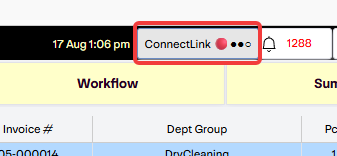
ConnectLink is a lightweight Windows application that runs in your system tray (the area near your clock in the bottom-right corner of your screen). It acts as the bridge between your browser session and your local hardware. Without it running and connected, SPOTWeb will work fine for everything except printing, scanning, and cash drawer operations. You can check its connection status at a glance from the SPOT Web Home page: the ConnectLink indicator in the top bar shows a green dot when connected and a red dot when it isn't.
Key point: If you can log into SPOTWeb but your printer, scanner, or cash drawer isn't responding, ConnectLink is almost always the place to start.
Installing ConnectLink
ConnectLink is installed directly from within SPOTWeb. Here's how to get it set up:
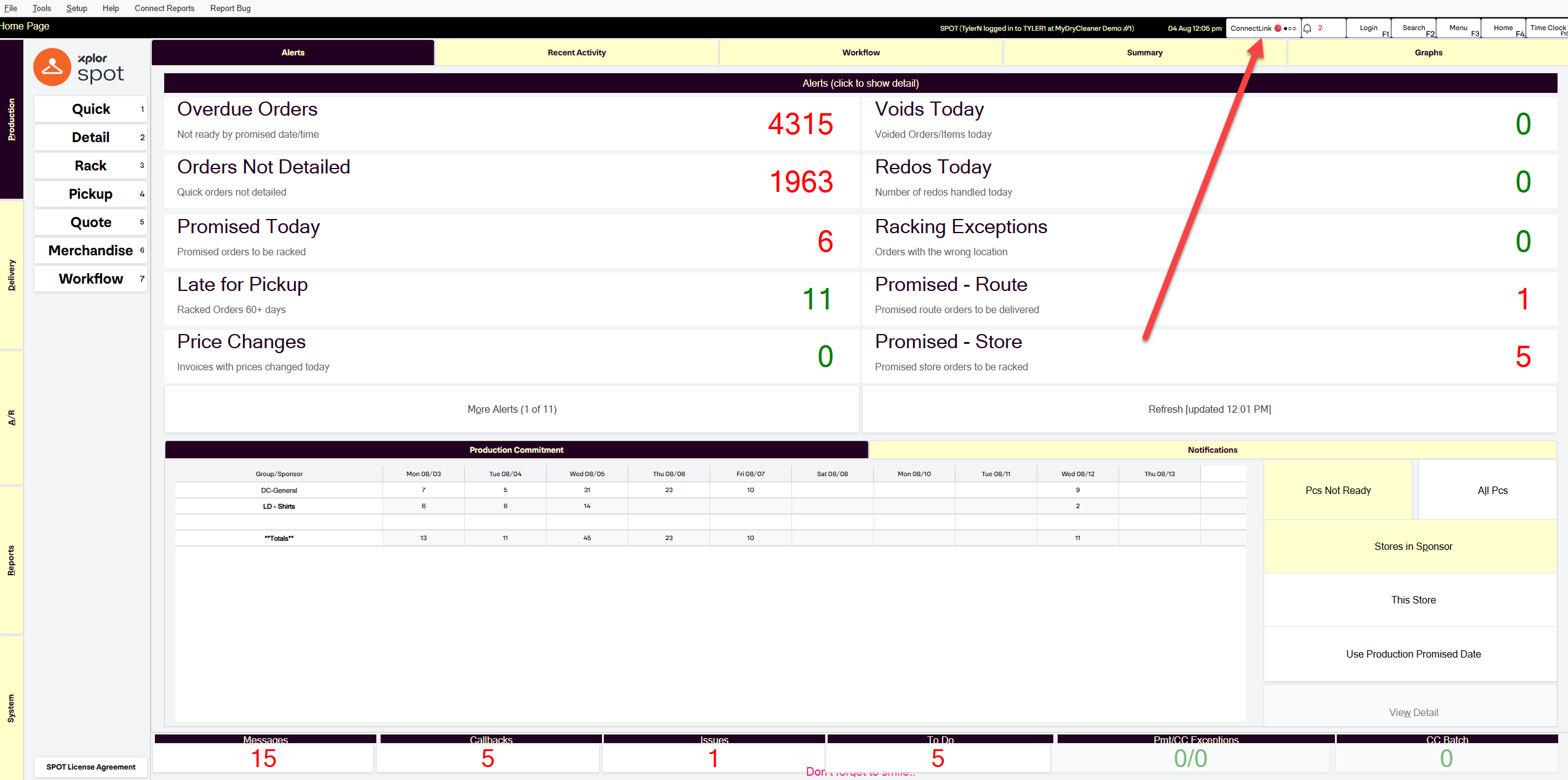
On the SPOT Web Home page, find the ConnectLink indicator in the top bar. A red dot means ConnectLink is not connected yet. Click the indicator to open the ConnectLink Setup window.
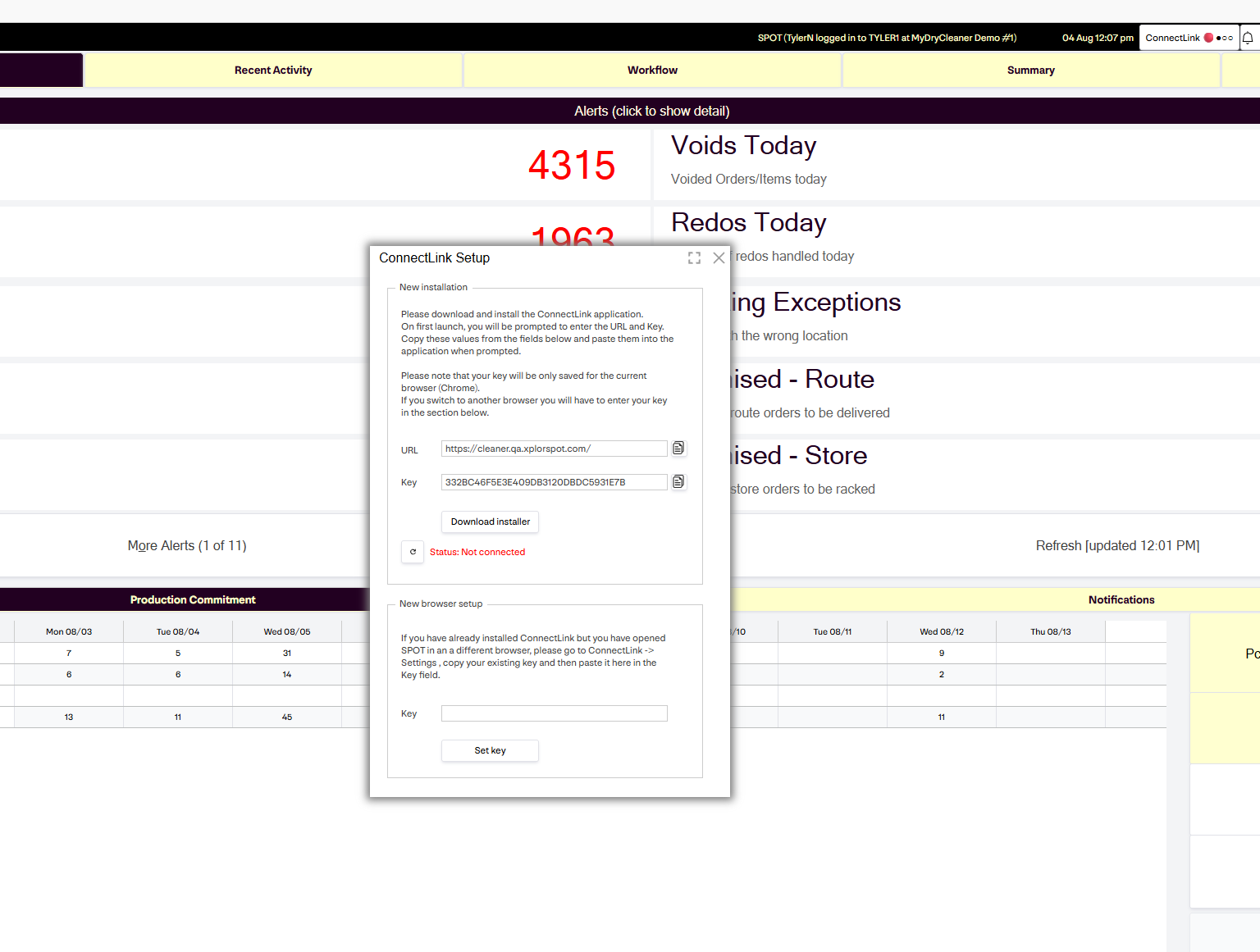
In the setup window, click Download installer and run the downloaded file. It's a standard Windows installation, just follow the prompts. If your browser flags the download as not commonly downloaded, see Unblocking the ConnectLink Installer below.
Once installed, launch ConnectLink from the desktop shortcut. It will prompt you for a URL and Key.
In the ConnectLink Setup window, use the copy button next to the URL field, then the matching paste button in ConnectLink. Repeat for the Key.
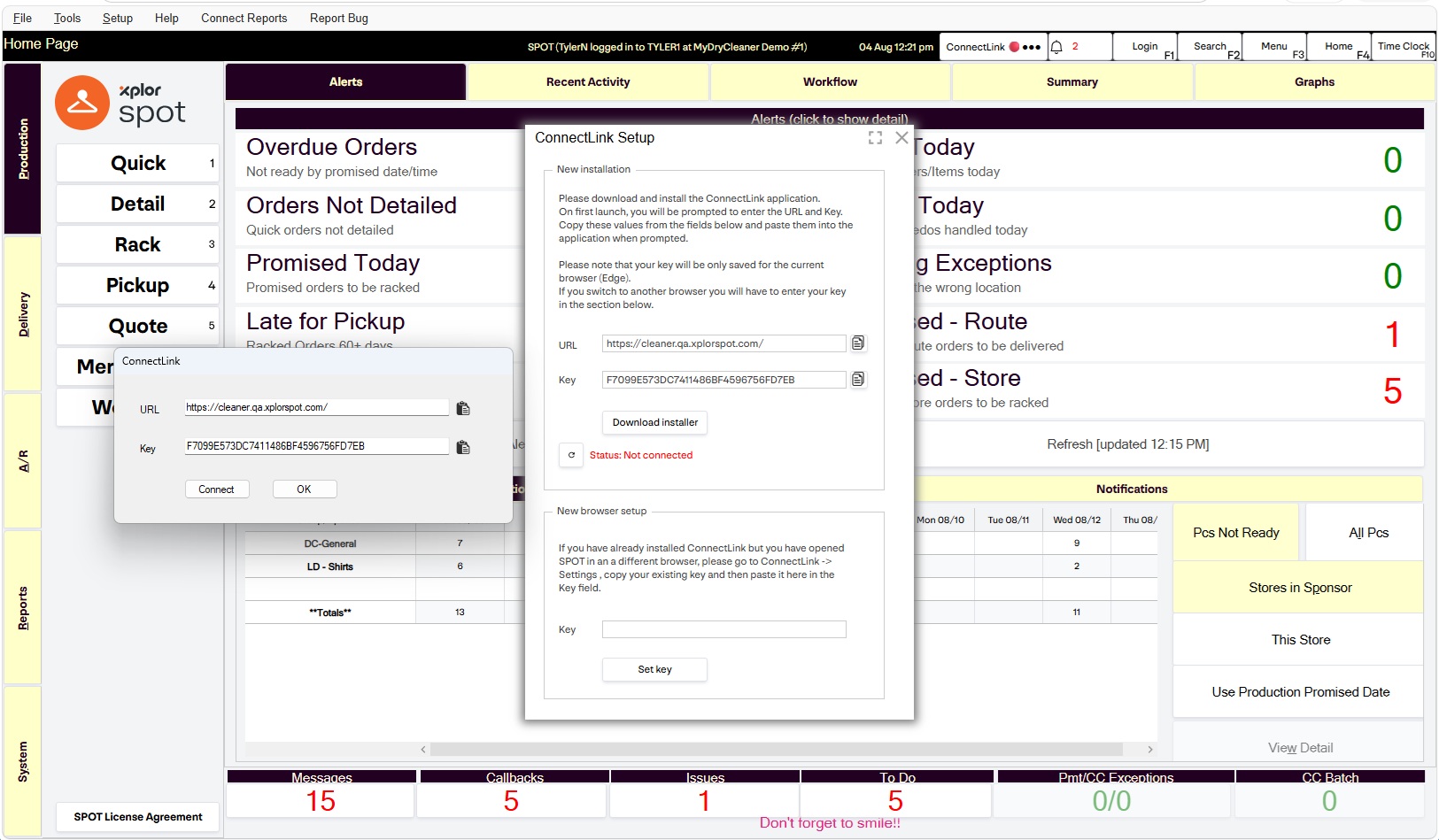
Click Connect in ConnectLink. The status line in the setup window will show Connected, and the indicator on the Home page will turn green.
Give it a moment: ConnectLink can take up to 10 seconds to fully connect after you click Connect. If the status doesn't update right away, wait those few seconds before clicking Connect again. Reconnecting too soon starts the whole process over.
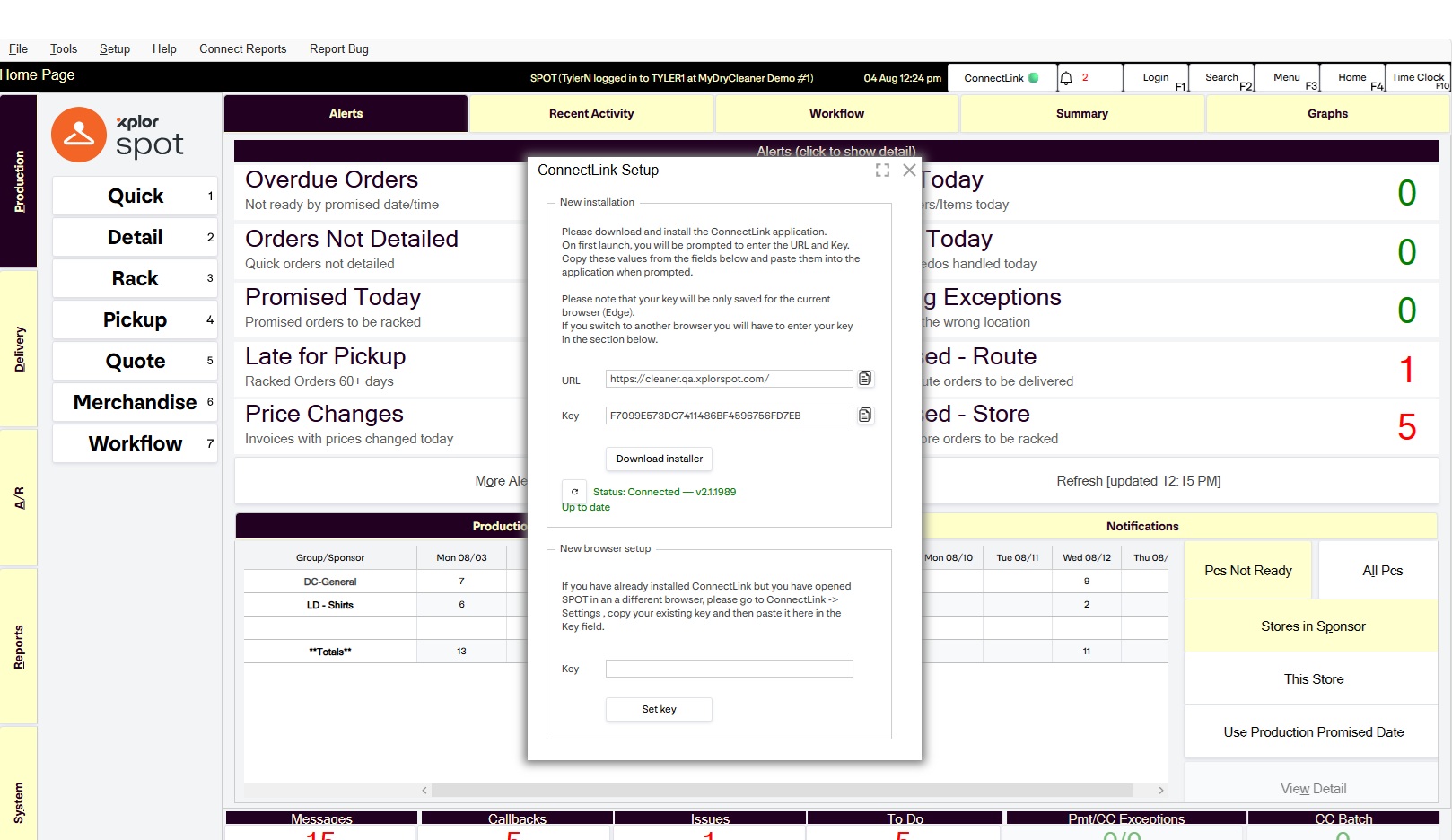
Important: The values you paste into ConnectLink must come from the same workstation you selected when logging into SPOT Web. If they don't match, your hardware won't respond, even if ConnectLink shows Connected.
Switching browsers? Your key is only saved in the browser you set it up in. If you open SPOT Web in a different browser, open ConnectLink → Settings and copy your existing key, then paste it into the New browser setup field in the ConnectLink Setup window and click Set key.
Unblocking the ConnectLink Installer
The ConnectLink installer comes straight from our SPOT servers rather than a public download site, so browsers sometimes flag it as uncommon. That's expected, and it's safe to keep the file. Here's what it looks like in Microsoft Edge:
Download the installer as usual. If Edge flags it, the Downloads menu will show ConnectLinkSetup.msi isn't commonly downloaded.
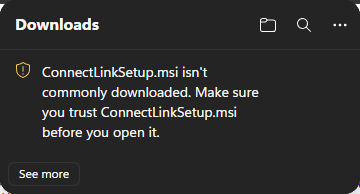
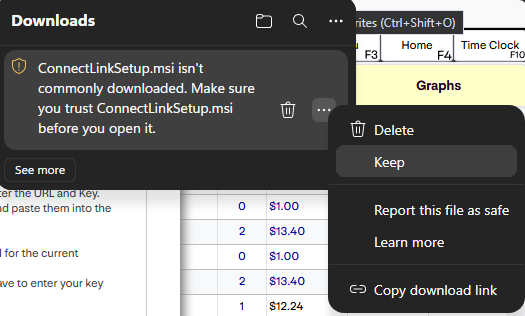
Hover over the warning and click the More actions (...) button, then select Keep.
Edge asks you to confirm. Click the arrow next to Delete and select Keep anyway.
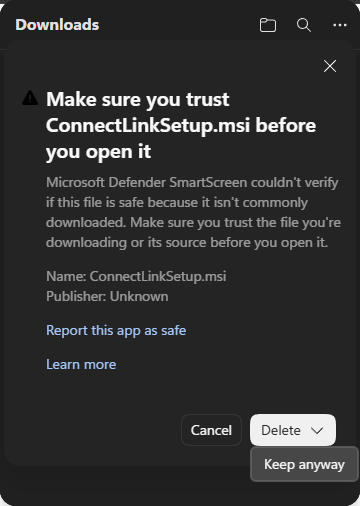
That's it. Open the downloaded file and follow the installation prompts.
Using a different browser? Chrome and others show a similar warning with slightly different wording; look for a Keep option in the download's menu. And if Windows itself blocks the installer when you run it with a "Windows protected your PC" message, click More info, then Run anyway.
Reinstalling ConnectLink
If ConnectLink is behaving unexpectedly or you're having persistent hardware issues, a clean reinstall often resolves things. The order of these steps matters:
Uninstall the existing version of ConnectLink through Windows Add/Remove Programs.
Close any remaining ConnectLink process. Right-click the ConnectLink icon in the system tray → Exit. Make sure it's fully gone from the tray, not just minimized.
Download and reinstall using the latest installer from SPOT Web. On the Home page, click the ConnectLink indicator and select Download installer.
Follow the same setup steps as a fresh install: Launch → Copy and paste the URL and Key → Connect → Verify.
Troubleshooting Hardware Issues
If your printer, scanner, or cash drawer isn't responding in SPOTWeb, run through these checks before contacting support:
1. Check ConnectLink status
Start with the ConnectLink indicator at the top of the SPOT Web Home page. A green dot means connected. A red dot means not connected; click the indicator to open the setup window and check the status line. If ConnectLink still won't connect, look in your system tray for the ConnectLink icon. Right-click it and check the status. If it says Disconnected, select Connect. If the icon isn't there at all, launch ConnectLink from your desktop shortcut. In many cases, simply reconnecting resolves the issue, especially after a computer restart or if the app was accidentally closed.
2. Verify your workstation values
If ConnectLink shows Connected but hardware still isn't responding, right-click the tray icon → Settings and confirm that the workstation listed in ConnectLink matches the workstation you selected when logging into SPOTWeb. If there's a mismatch, correct the values and reconnect. The copy buttons in the ConnectLink Setup window make it easy to re-paste the correct values.
3. Contact support
If ConnectLink is connected, your workstation values match, and hardware still isn't working — contact support. To help us resolve the issue quickly, please have the following ready: your Account Key, workstation, and which hardware is affected (e.g. receipt printer, barcode scanner, cash drawer).
Reports in SPOTWeb
If you previously accessed reports directly within SPOT, you'll notice they're no longer in the same place. With SPOTWeb, reports are now accessed through Connect Reports — a dedicated reporting interface tied to your account. Your data hasn't changed or gone anywhere; the access point has simply moved.
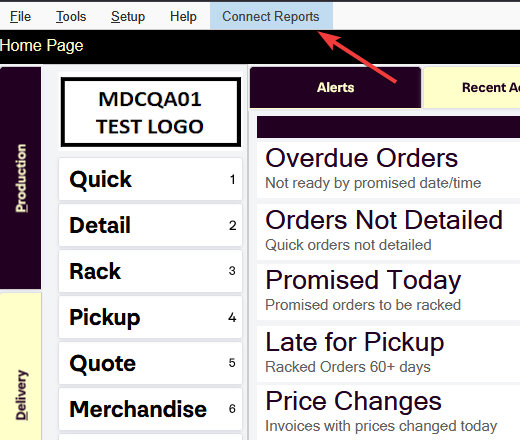
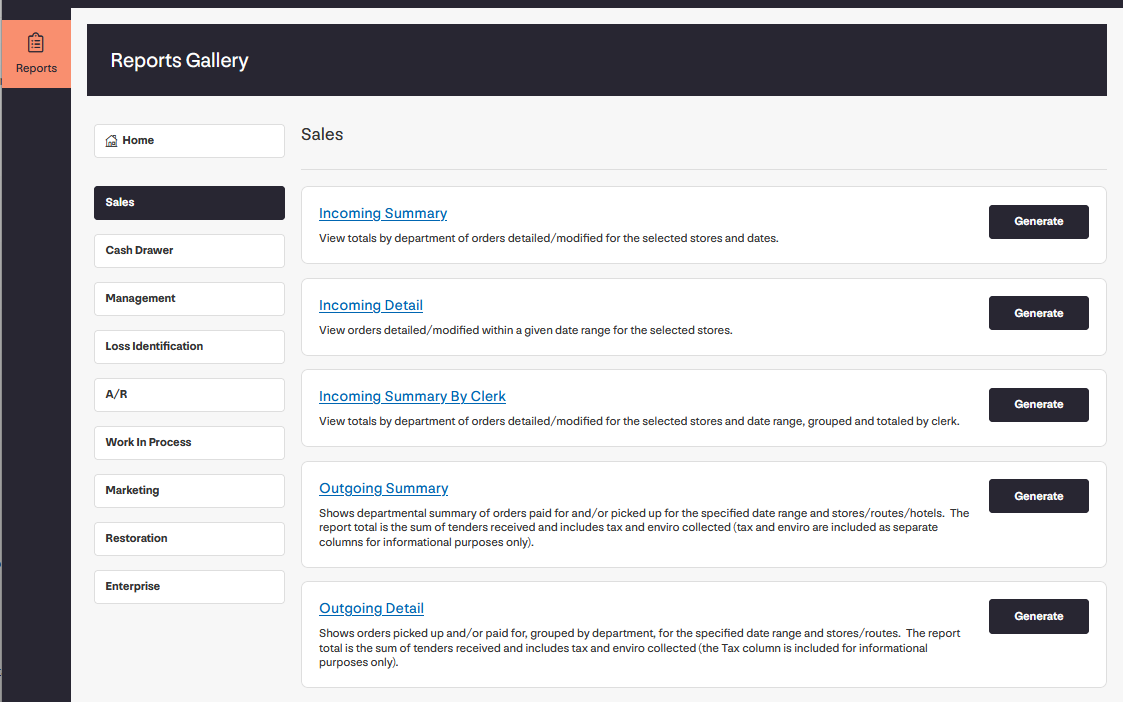
I can't find my reports in SPOTWeb
Reports have moved to Connect Reports. If you're not sure how to access Connect Reports, contact support and we'll walk you through it.
I can access Connect Reports but don't see any data
There may be an additional enablement step required for your account. Contact support with your Account Key and we'll get it sorted.
Additional FAQs
Can I use SPOTWeb on a tablet or phone?
SPOTWeb is browser-based, but it's designed for desktop use. It's not currently optimized for mobile or tablet screens.
Do I still need SPOTLauncher installed?
Not for SPOTWeb. SPOTLauncher was specifically for the Citrix-based access method. If you're already using SPOTWeb, you no longer need it. However, if you haven't yet been migrated and are still using Citrix, keep SPOTLauncher until your transition.
My coworker can log in but I can't — why?
SPOTWeb access is enabled on a per-account basis. It's possible your coworker's account has been activated while yours hasn't yet. Contact support with your Account Key and we can check your access status. If your account hasn't been enabled yet, you can request access with the signup form near the top of this page.