HSL Remap Tool
The HSL remap tool is a utility in SPOT that allows you to re-assign an HSL's price table properties if they are 'broken' (renamed/deleted).
Overview
Lets take a look at how this works...
First we are going to check our customer Smith, John by navigating to:
Search > Customer > Customer View > Details > Heat Seal Items
He has two HSL's assigned. Both of them have a department of Shirts.
2/5
Next we need to open program configuration:
Setup > Program Configuration
We are going to 'break' those assigned HSL's.
Warning! This is just for demonstration. Please to not rename any departments, department groups, categories, or items without help from SPOT Support.
3/5
Warning! This is just for demonstration. Please to not rename any departments, department groups, categories, or items without help from SPOT Support.
We are going to rename a department name in order to have HSL's show in the remap tool:
Company > Mark-in settings > Price Tables > General > Departments > Shirts
Shirts is going to be renamed Shirts Laundry.
4/5
Now we can finally get to the HSL remap tool now that we have actual 'broken' HSL's:
Menu > HSL (Heat Seal Labels) > Remap Tool
First we are going to select Items then the General price table.
Next we need to use the Evaluate HSL Identifiers button to check the database for 'broken' HSL's.
Finally we can use the drop down for the Department to assign the new Shirt Laundry name.
Use the Save Changes button to commit your choices. Tip: Once the save button is selected, there is no way to easily undo your choice.
5/5
Now that we have fixed the HSL's department, lets check John Smith's HSL's:
Search > Customer > Customer View > Details > Heat Seal Items
We can see that the department has been corrected on both items.
The Details
To access the remap tool navigate to:
Menu > HSL (Heat Seal Labels) > Remap Tool.
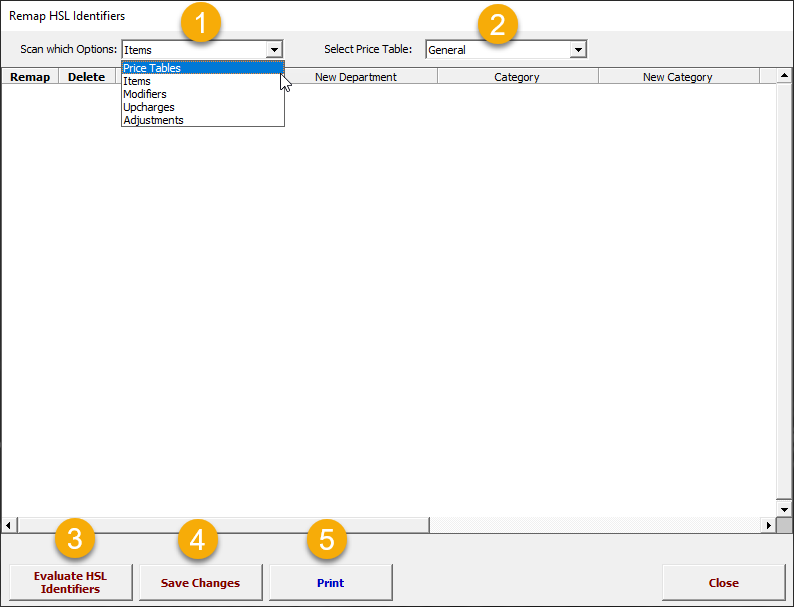
1. Select from six options:
Price Tables: Select this option if there was a price table renamed or deleted.
Items: Select this option if a department, category, or item name was renamed or deleted.
Modifiers: Select this option if a modifier (color, brand, pattern, etc.) was renamed or deleted.
Upcharges: Select this option if an upcharge was rename was renamed or deleted.
Adjustments: Select this option if an adjustment name was renamed or deleted.
Conversion: This option will allow you to change Upcharges to Alterations or vice versa. Tip: Keep in mind that when using this option you will need to use the modifiers or upcharges option to finish making the changes to the HSL's.
2. Select the price table for the HSL's you want to fix.
3. Evaluate HSL Identifiers: This button will scan your HSL inventory and return the HSL's that are 'broken' for the parameters you selected in option 1 & 2.
Tip: Depending on the number of HSL's this could take several minutes. Make sure to use a station that will not require activity in the near future.
4. Save Changes: This will commit any changes you make to the HSL's.
Warning! There is no 'Undo'. Once you select 'Save Changes' the HSL's will be modified with your selections.
5. Print: Use this to print the list to your report printer.
Did you find this helpful?


Great!
Thanks for taking the time to give us some feedback.
Thanks for your feedback.
Want to tell us more?
Send an email to our authors to leave your feedback.