When your customers drop off at a Metalprogetti kiosk, SPOT creates the order for you. These orders are called Kiosk Quicks. Instead of checking the kiosk dashboard to find out who dropped off a bag, you can see every kiosk drop-off on your Home Page and pull it up in Detail by its bag number.
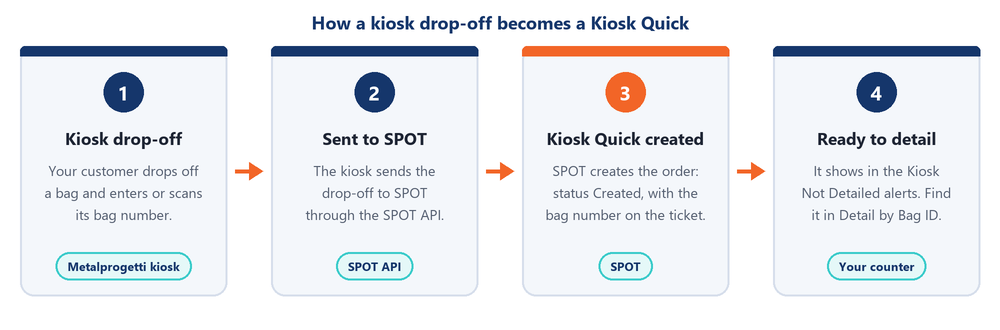
This article walks you through the three things to set up in SPOT: the kiosk alerts, Bag ID lookup, and the kiosk message templates.
What a Kiosk Quick looks like
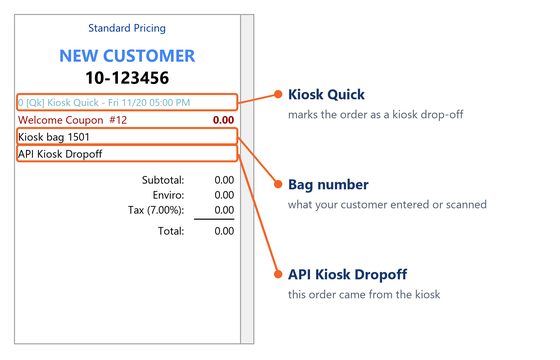
A Kiosk Quick works like a regular Quick, with a few differences:
Its status is Created.
The ticket shows the bag number the customer entered, for example Kiosk bag 1501, and the line API Kiosk Dropoff.
Any automatic coupons the customer qualifies for are already applied.
Show kiosk drop-offs on your Home Page
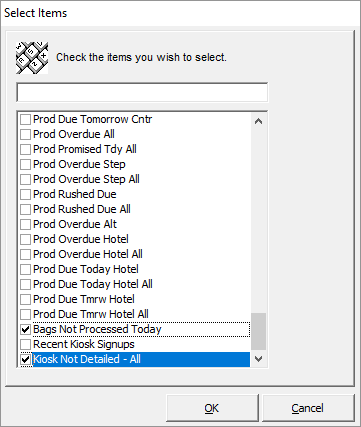
Two alerts list the kiosk drop-offs that haven't been detailed yet:
Kiosk Not Detailed: drop-offs for this store. Use this one if you have a single kiosk location.
Kiosk Not Detailed - All: drop-offs for all your stores. Use this one if you have several kiosk locations and want to watch them from one place.
Alerts are turned on for each store. To add them:
Go to Setup > Program Configuration.
Select the Store tab, then go to Site Defaults.
Next to Alerts, select Edit.
Check Kiosk Not Detailed, Kiosk Not Detailed - All, or both. They're near the bottom of the list.
Select OK, then Save.
Don't see the kiosk alerts?
If Kiosk Not Detailed or Kiosk Not Detailed - All isn't in the list, contact Support and we'll add it for you.
Select the alert on your Home Page to see the waiting kiosk orders. Select an order to see its ticket.
Look up kiosk drop-offs by bag number
Bag ID lookup lets you find a kiosk drop-off by the number on the bag. It isn't turned on by default, and it's set for each store.
Turn on Bag ID lookup
Go to Setup > Program Configuration.
Select the Store tab, then go to Search/Lookup Settings.
Next to Customer Lookup Types, select Edit.
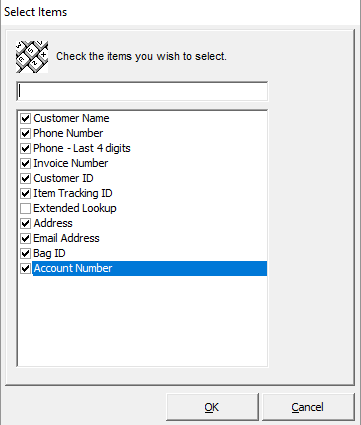
Check Bag ID.
Select OK, then Save.
Tip
The lookup window only has room for a few lookup buttons. The rest go behind the More Options... button. To keep Bag ID on the first page, uncheck a lookup type you rarely use.
Detail a kiosk drop-off
From the Home Page, select Detail.
In Look Up Customer, select Bag ID.
Scan the bag's QR code or type the bag number, then select OK.
In Select Order, select the kiosk order. It shows the status Created.
Detail the order as usual.
Best practice: keep bag numbers unique
There's nothing to set up in SPOT for bag numbers. You print them on your bags, as a number, a QR code, or both, and your customers enter or scan them at the kiosk. What matters is that each number is used only once.
If you have more than one kiosk location, the same bag number at two stores can pull up the wrong customer when you search by Bag ID. To avoid this, start each location's bag numbers with its store number. For example, store 15 uses 1501, 1502, 1503, and so on.
Send kiosk messages from SPOT
Messages sent from SPOT show up on the customer's CRM tab, so you can see what went out. Each storage conveyor has six kiosk message settings, an Email and an SMS version of each:
Receipt: sent when the customer picks up and pays at the kiosk.
Welcome NewCust: sent to a new customer who signs up at the kiosk.
Dropoff Confirmation: sent to confirm a kiosk drop-off.
To assign them, go to Setup > Program Configuration, select the Company tab, then Conveyor Settings > Conveyors and your storage conveyor. Choose a template for each Kiosk - API setting, then select Save.
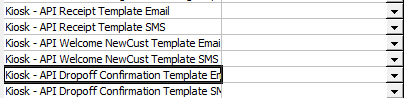
You create the templates in Menu > Email/Messaging > Edit Document Templates. For a walkthrough, see Pickup Receipt Email/SMS.
Metalprogetti needs to turn these on too
Assigning templates in SPOT isn't enough on its own. Metalprogetti also has to turn on SPOT messaging for your kiosk. Contact Support to coordinate it.